
מישהוא מכיר תוכנה טובה לאיחוי(חינמית)?תודה מראש...עצמי
יש מובנה במערכתמשה
יש משהו יותר מקצועי ומועיל??עצמי
כנס !!!אנונימי (פותח)
http://rapidshare.com/files/150276534/por.oodef.pro11_www.softarchive.net.rar
תכנס ללינק ואז תראה שמה 2 לוחות של זמן תלחץ על הFREE USER
תחכה איזה 40 שניות ואז תוריד אם זה לא עובד לך אז תיכנס לכאן
http://www.fxp.co.il/showthread.php?t=2165870&highlight=%D7%AA%D7%95%D7%9B%D7%A0%D7%94+%D7%9C%D7%90%D7%99%D7%97%D7%95%D7%99
יהיה לך שמה הסבר מפורט והורדה !!!
בהצלחה אחי !!!
תודה!אני יסתכל שאני יגיע הביתה...עצמי
ממה שהבנתי מדובר בתונה חוקיתמשהאחרונה
IE8 בטא 2 יצא גם בעברית...משה
אסמסים חינםנעמה*
בס"ד
מישהו מכיר אתרים שאפשר לשלוח בהם אסמסים חינם (לכל הרשתות)?
תודה!
אם את בחברת פלאפון:ישי ויזנר
vip.pelephone.co.il
זה מוגבל ב-20 ליום.
אם את רוצה- יש פה תוכנה (שפורסמה בעבר בפורום הזה: /Forum/Forum.aspx/t46133#633728)-
http://www.fastsms.co.nr/
בנוסף ל VIPרחלקהאחרונה
צריך מס' ת.ז/ כרטיס אשראי/ מס' לקוח.
לכל רשת יש באתר שלהotk100
...עצמי
אתאמסטי דמתי
אפשר גם מהאיי סי קיו תפתחי לך חשבוןאמסטי דמתי
אימיול או קאזה??? זאת השאלה...עטרת =)
מה עדיף להוריד אימיול או קאזה? האם יש בניהם הבדל משמעותי? [או הבדל בכלל??]
אגב, מאיפה אני יכולה להוריד את אחת התוכנות הנ"ל?? [מה שיותר טוב להוריד...]
אשמח להסברים מקיפים בנושא [כי כשניסתי להוריד זה לא בדיוק התחבר לי...]
תודה רבה!! ושנה טובה!!
אנלא יכולה להמליץ לךטימון!
אבל מה שכן רציתי לומר לך- שעכשו לאנשים שיש תוכנות כאלו יש את אימיול, וקאזה ממש נשכח (נראה לי בגלל שתפסו את היוצרים שלו..)
אז כדאי לך להוריד אימיול.. (לא מבחינת טיב התוכנה, אלא כי אני שומעת שלמלא יש אותה והם מרוצים..)
הורדתי את שניהם אבל כלום לא מתחבר...עטרת =)
באימל הלכתי ללחצן "שרתים" ויש שם בדיוק שרת אחד, ולחצתי עליו "התחבר" וכבר שעה כלום לא מתחבר!! אוף איזה עצבים....
אשמח לכל עצה מועילה!! תודה

ממליץאמסטי דמתי
הורדתי אימיול אבל הוא לא נפתח...עטרת =)
אם כן, אפשר קישור?? תודה!
לאן הוא לא מתחבר?משה
קאזה תוכנה שמתה, רק אימיול...משה
לא אימיול ולא קאזה!!!אנונימי (פותח)אחרונה
היה לי את אימיול וקאזה ואני יכול להגיד לך שהיא מורידה מהר
אם אתה רוצה להוריד אז תלחץ כאן
http://www.fxp.co.il/showthread.php?t=1093709&highlight=imesh
עזרה, מישו מנסה לעשות לי צרות במחשב.neriag
אה, שכחתי,neriag
הייתי מברר מה רץ במחשבמשהאחרונה
ייתכן ש-AV יפתור את הבעיה אבל סיכוי סביר שלא - ואז צריך לשוטט במערכת ולחפש את זה.
ג'מייל - לא נטעןסבא גפטו
האם יש סינון אתרים? אם כן, איזה? האם אתרים אחרי...11111
סינון?סבא גפטו
חוץ מזה, באמת עכשיו אני רואה ששום דף של https לא נטען לי.
מה יש לעשות בנידון?
נסה באחד הדפים ctrl+f5...משה
נסיתי.סבא גפטו
דף אינטרנט זה אינו זמין.
יתכן שדף האינטרנט בכתובת https://www.google.com/accounts/ServiceLogin?service=mail&passive=true&rm=false&continue=http%3A%2F%2Fmail.google.com%2Fmail%2F%3Fui%3Dhtml%26zy%3Dl&bsv=1k96igf4806cy<mpl=default<mplcache=2 אינו פעיל זמנית, או שהועבר לצמיתות לכתובת אינטרנט חדשה.
להלן מספר הצעות:
טען מחדש דף אינטרנט זה מאוחר יותר.
צפה בעותק שמור של דף האינטרנט מ-Google
מידע נוסף על שגיאה זו
עכשיו עובדסבא גפטו
ניתקתי וחיברתי וזה עובד.
תודה על הרצון לעזור, בכ"א
גמר חתימה טובה לכל בית ישראל.
הימור שלי -DNSמשהאחרונה
שאלה בנושא מנגינה בפלאפוןזית שמן ודבש
בס"ד
שבוע טוב כולם! בפלאפון שלי (מוטורולה C168) יש אפשרות להלחין מנגינות אבל חסרים כמה תווים של דיאז # (לא כולם חסרים). האם אני יכול לתקן את זה?
הגדרות settings > כללי general > שפה Language: &g11111אחרונה
כללי general >
שפה: Language: >
Hebrew
שמור Save
אתריםאמסטי דמתי
יענו כתובות מי שיכול להביא לי תבוא עליו ברכה
? למישו ישאמסטי דמתי
http://www.google.co.il/gwt/n11111אחרונה
יש אפשרות להוריד קובץ שמיעה ישירה מהאינטרנט לקובץ?neriag
דווקא את זה?איזה_טוב_ה'_אחרונה
דחוףף!!! כולם להיכנסאמסטי דמתי
אני צריך את הקוד שעושים בפלאפון ואז מתמאלת הבטרייה (ניראה לי שזה רק בנוקיה?!?!?)
בבקשה תביאו לי את הקוד הזה.....
אפשר גם במסר"ש....
קשה לי להאמין שיש קוד כזהneriag
שהפלאפון יטעין את הבטריה של עצמו והבטריה תפעיל את הפלאפון? ולאן הלכה כל אנרגית האור והקול שבדרך?
כן, יש לכול סוגי המכשירים....אמסטי דמתי
קישוראיזה_טוב_ה'_
לא עובד. בדוק.פעימה
עוד קישוראמסטי דמתי
חיפשת את זה V ????גילת
כמה עצות שחברות הסלולר לא מספרות לכם משום מה:
1. כאשר הסוללה עומדת להתרוקן ואין לכם מטען לחצו 3370#* ואז ראה איזה פלא !!
הסוללה מתחזקת ב- % 50 אשר אגורים בסוללה למקרה חירום כזה.
2. לחצו 06# #* ואז יופיע לכם המספר הסידורי של הנייד, רשמו אותו במקום שמור !!!
אם ייאבד הטלפון או ייגנב - תודיעו לחברת הסלולר שהטלפון נגנב וזה מספרו הסידורי, ואז הגנב לא יוכל להחליף SIM ולהשתמש בטלפון כלל וכלל.הידעתם ?
שירות 144 הוא חינם לכל הסלולרים!
את זה הם מסתירים!
להלן פירוט ההתקשרות למודיעין 144
פלאפון 124450
סלקום 124452
אורנג/פרטנר 124454
מירס 124457
נא להפיץ!
אחד לא עובד- בדוק!!!!!עצמי
השאר עובד!!!
תודה רבה רבה רבה רבה!!!!אמסטי דמתי
אנשים בורים ,לא צריך להגיד כל פעם שאין כזה דבר.... תנו לאנשים חכמים מכם....
והנה עוד משהו:קוקו
#0000#*
"המספר שחייגת שגוי"...תפוזה 1
לא מחי'יגים את זה..פעימה
פשוט לוחצים על הספרות.. כשמסי'ימים את ה# האחרונה- זה ישר קופץ..
אצלי לא... לא משנה..תפוזה 1
איזה מגניבאיזה טוב^
כוכבית 3370 סולמיתotk100
רק ב3100 ו 3120yosef13
תיקון טעותyosef13
והנה שעון חיים של הפאלפון שלכם = נוקיהבן של מלך
מז'תומרת שעון החיים?*^שלמה-בת-ים^*
כמה זמן הפלא' עובד (בשעות)בן של מלך
תודה רבהאמסטי דמתיאחרונה
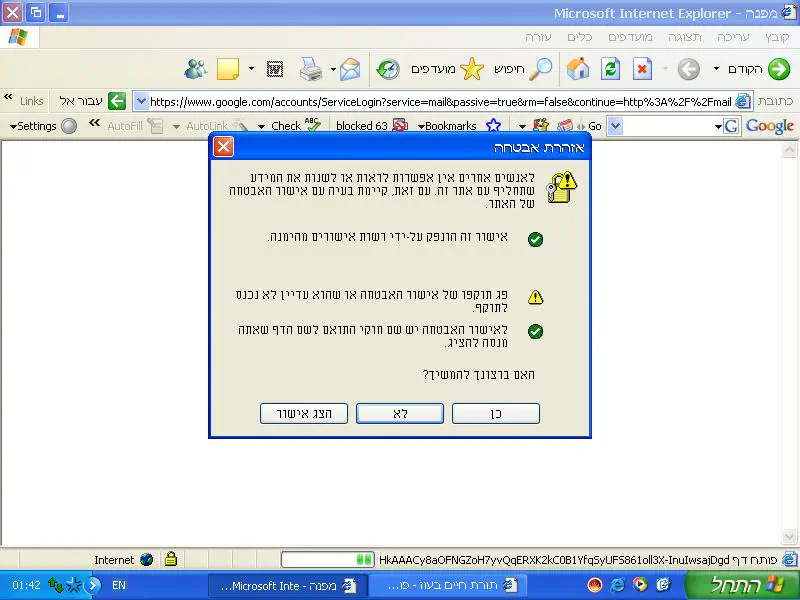 ניסיתי להיכנס לGMAIL וזה מה שהמחשב אומר לי...
ש"א או מסר"ש עם משהעצמיאחרונה
מישהו יודעמתנחלת לעד
ד"א-ישי ויזנראחרונה
איזה גירסה?איזה_טוב_ה'_
אימיולאור77
הורדתי את התוכנה למחשב, ואני לא מבינה כמה דברים...
שאלה ראשונה: הוא אמור להתחבר באופן אוטומט לשרת?
אם כן, כמה זמן זה אמור לגזול מזמני היקר?
ואם לא, לאיזה שרת אני אמורה להתחבר?
שאלה שניה: ומה זה "קדמיליה"? למה צריך את שני החיבורים האלה??
ודבר שלישי.. סתם... העיקר שאני אתחבר איכשהו.. כבר לא משנה איך.
אשמח לקבל עזרה... כל טוב! רק בשמחות!
סליחה "קדמליה"...אור77
תודה רבה לכם! איך עזרתם לי!!!!!אור77
אף אחד לא חייב לענות פה לשום דבר.11111
או שלא רוצים לענות (זכותינו)
או שלא יודעים (ענייננו)
או שמישהו יודע, רוצה לענות אבל לא ראה את ההודעה.
בגלל הסיבה האחרונה אתה יכול להקפיץ הודעות, אבל ההתייחסות ממך שנשמע ממנה שמישהו היה צריך לענות מוגזמת.
מצטרףמשה
יווווו... אני מצטערת!אור77אחרונה
ועכשיו תכלס - נשתדל לענות לךאנונימי (פותח)
על שאלתך הראשונה: האימיול אכן אמור להתחבר אוטומטית לשרת, אלא שלאחרונה שרתים רבים בחו''ל בוטלו בגלל בעיות חוקיות, ולכן אם הוא לא מתחבר אוטומתית לשרת את צריכה להכנס באימיול ל'שרתים' ולתת דבל קליק על שרת אחד מהרשימה (שרת טוב הוא בדרך כלל שרת עם 'קילו' גבוה ו'פינג' יחסית נמוך), למטה בתוכנה תראי אם הוא התחבר, לוקח לו כ10 שניות.
קדמיליה: דרך הקדמיליה מוצאים קבצים ומקורות הורדה רבים נוספים שדרך השרת לא נגיע אליהם, קדמילה מחברת את המשתמשים ישירות ולא דרך שרת.
אם את לא מצליחה להתחבר לשום שרת, תוודאי שהאימיול לא חסום בחומת האש, ותורידי רשימת שרתים נוספים, אם לא עזר-תורידי גרסה אחרת של אימיול.
כאן תמצאי הרבה רשימות של שרתים, וכן גרסאות שונות של אימיול
http://www.tovim.co.il/8218349
אם החלטת להוריד גרסה שונה של אימיול, אני ממליץ על Razorback3 (זה שלייד החמור הקטן) או אימיול בוסטר.
לסיום כמה טיפים: כנסי באימיול ל'העדפות' > 'חיבור', ותוודאי שמסומן V ב 'התחברות אוטומטית בהפעלה',
באותו מקום תוודאי שיכולת העלאה מסומנת על 11 ויכולת 'הורדה' 200 או יותר.
כנ"ל ב'גבולות' תימשכי עד לסוף הפס.
בהצלחה!
ipod הוא מכשיר יקר שלא בטוח ששווה ללכת עליומשהאחרונה
לגבי מצלמה - חפשי של יצרן ידוע (Canon, Olympus ורבים אחרים שלא עולים לי כרגע בראש), הזולות שלהם בדרך כלל עושות עבודה טובה.
לאיזה סוג של גרפיקה?11111
http://gimp-win.sourceforge.net/stable.html
inkscape ציור וקטורי
http://inkscape.org/download/?lang=en
krita עיבוד תמונות וכדו' התוכנה בראשית דרכה (הגרסה לווינדוס מוגדרת כאלפא)